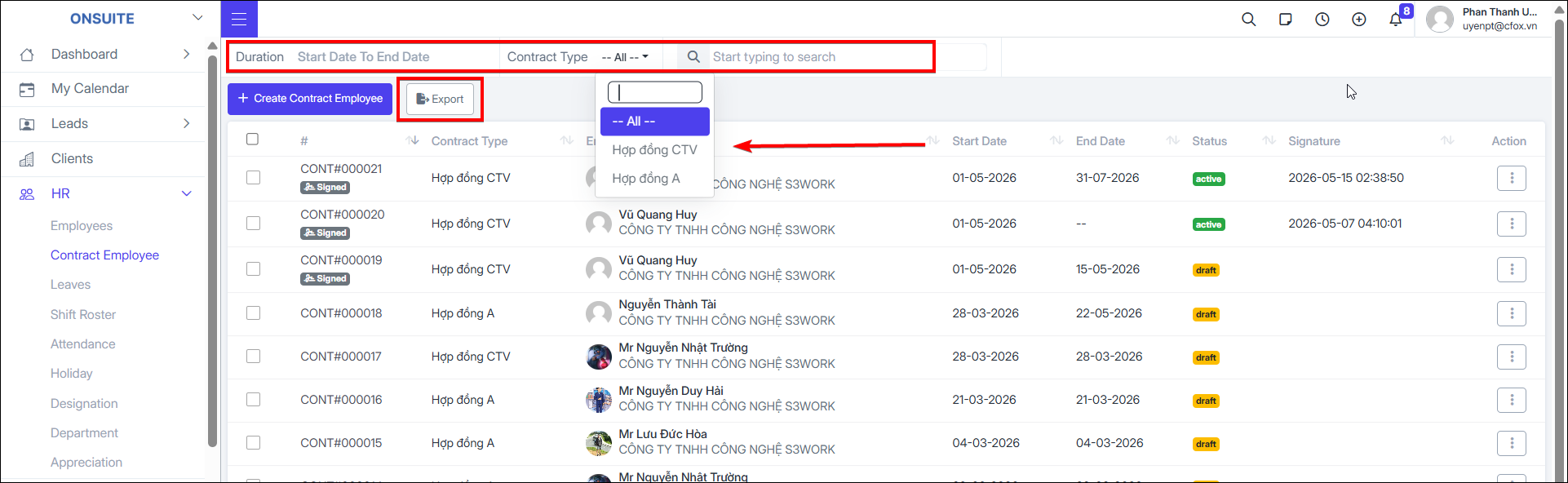
3.2. Employee Contracts
-
Go to HR → Employee Contracts → Manage contracts
-
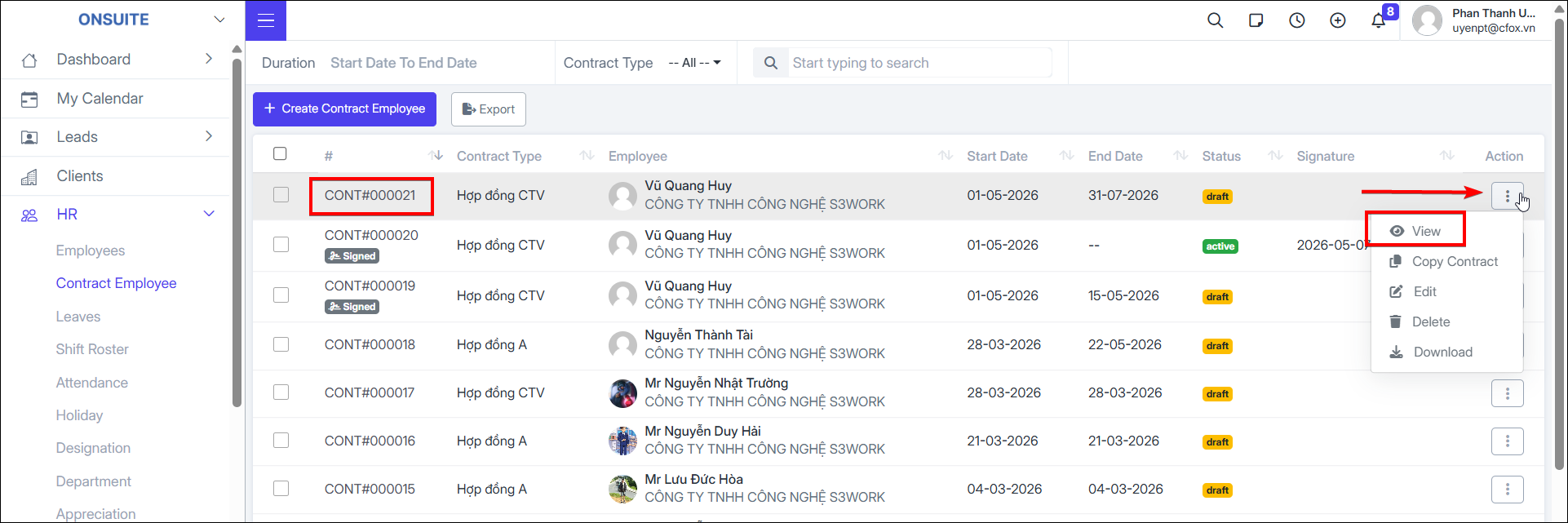
Can View / Copy / Edit / Delete / Download contracts
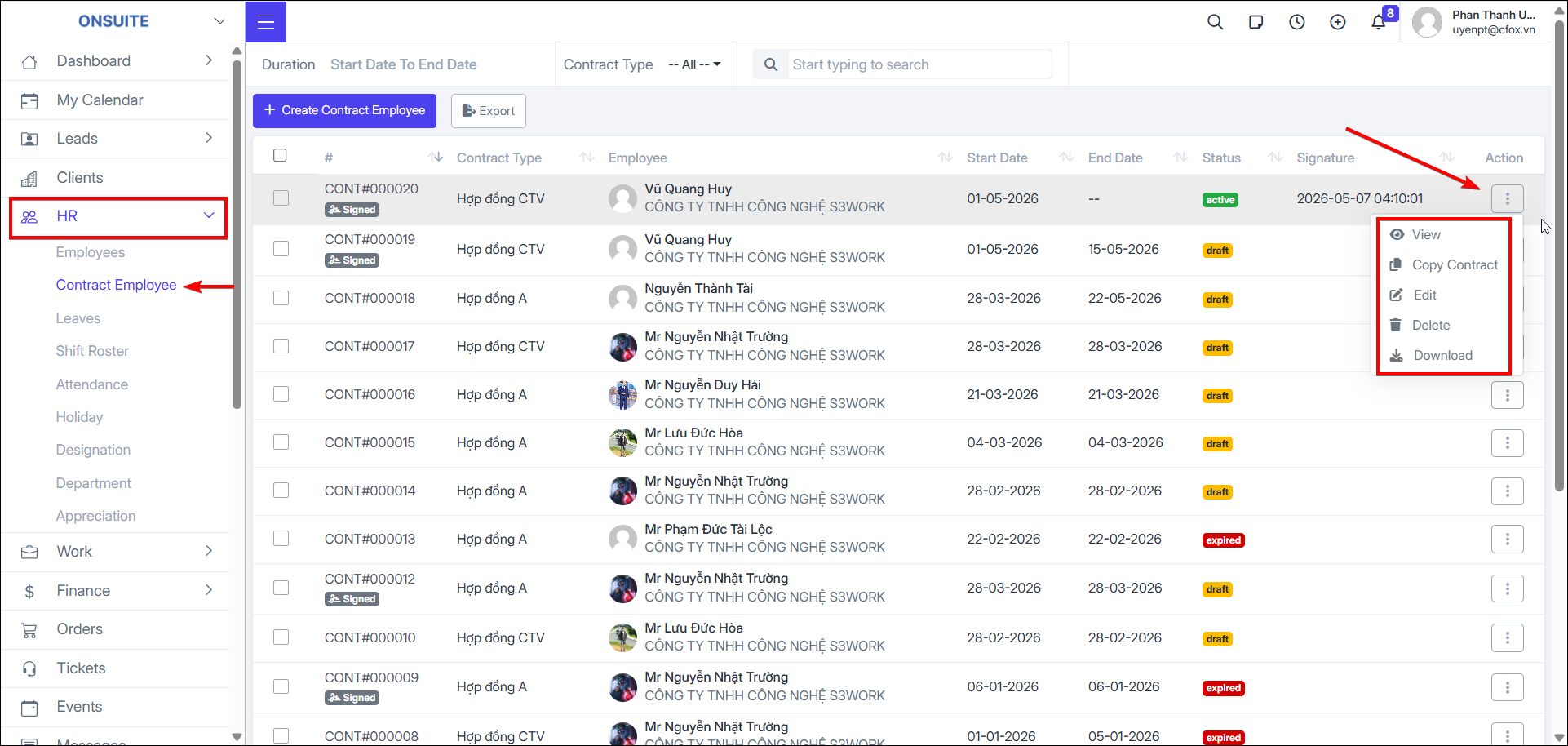
Create Contract:
- Step 1: Select Create Employee Contract
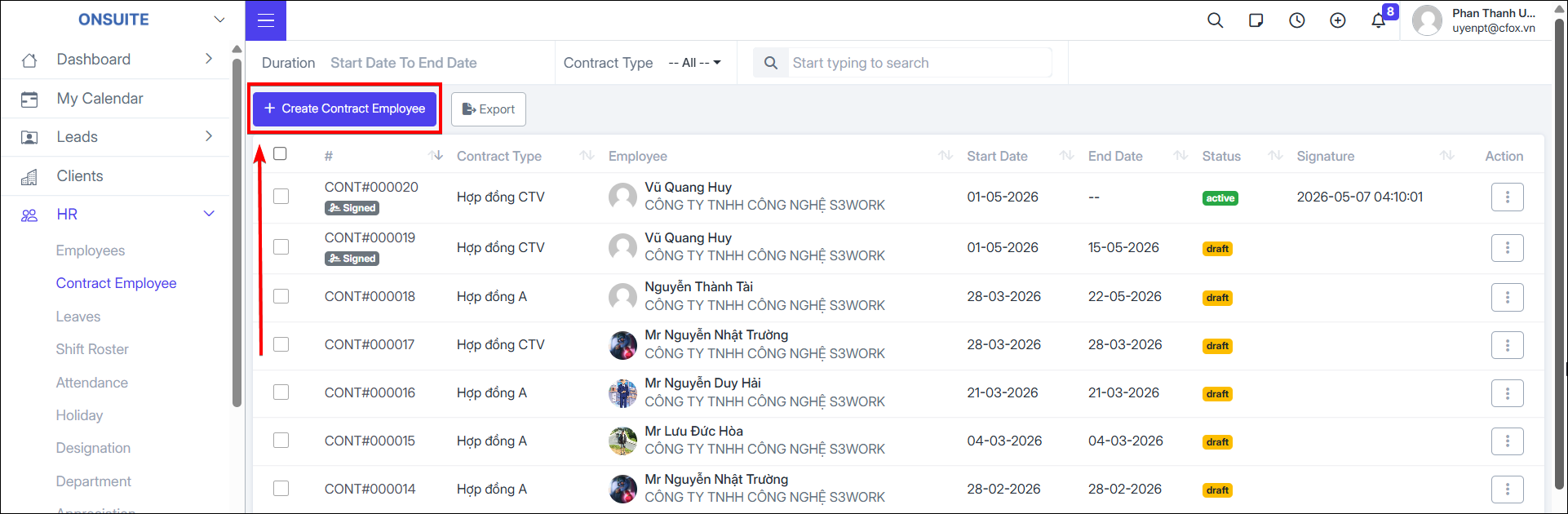
-
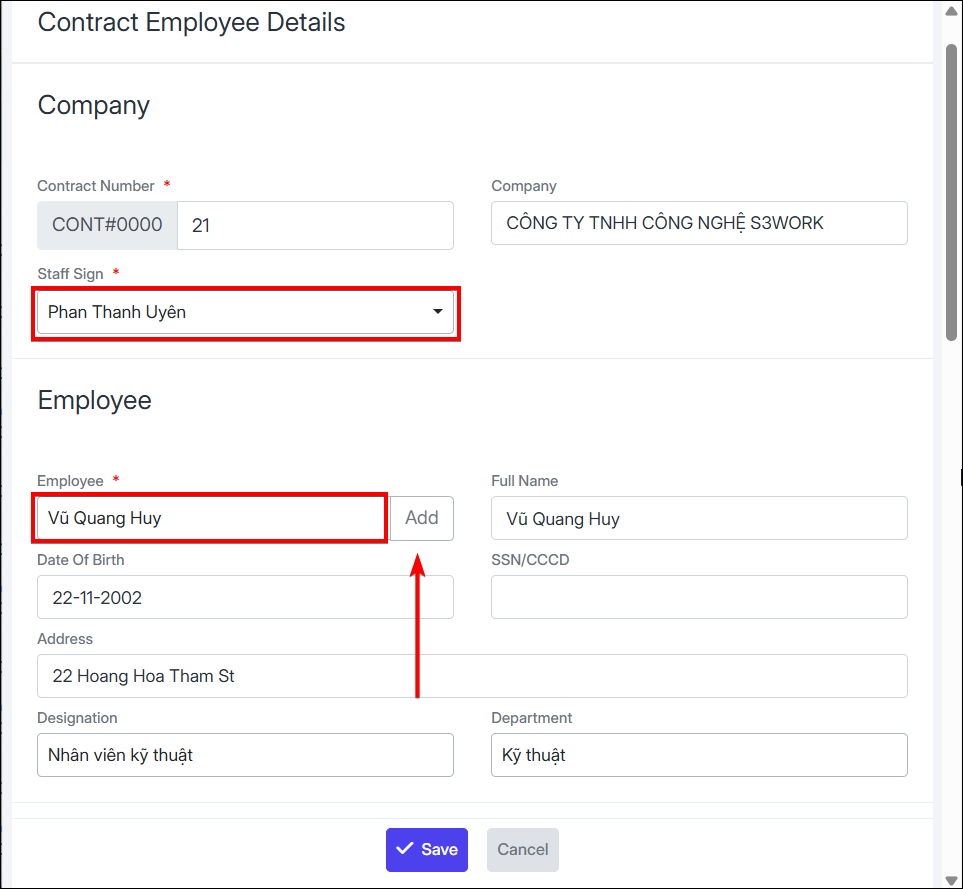
Step 2: Enter basic information:
-
Contract number (or let the system auto-generate)
-
Company name
-
Authorized signing employee
-
Select employee (if not available, can quickly add new) – System will auto-fill the employee's configured personal information
-
-
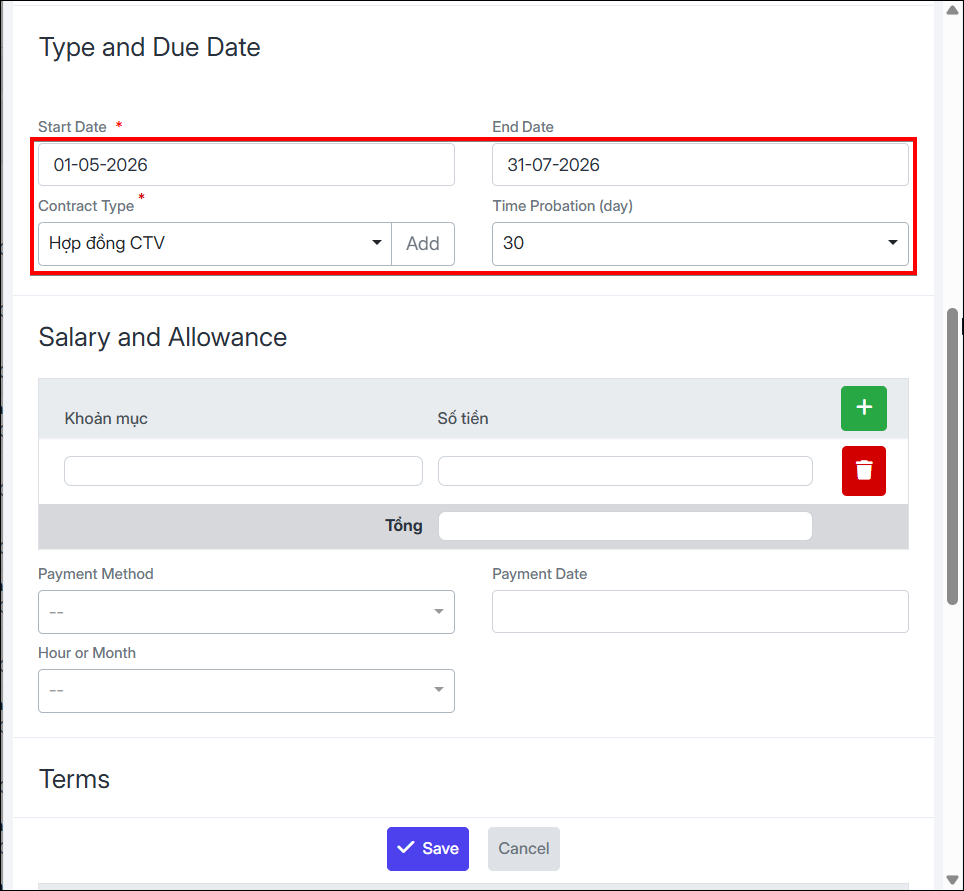
Step 3: Set time & contract type:
-
Start date – end date
-
Contract type (can add new)
-
Probation period (if any)
-
-
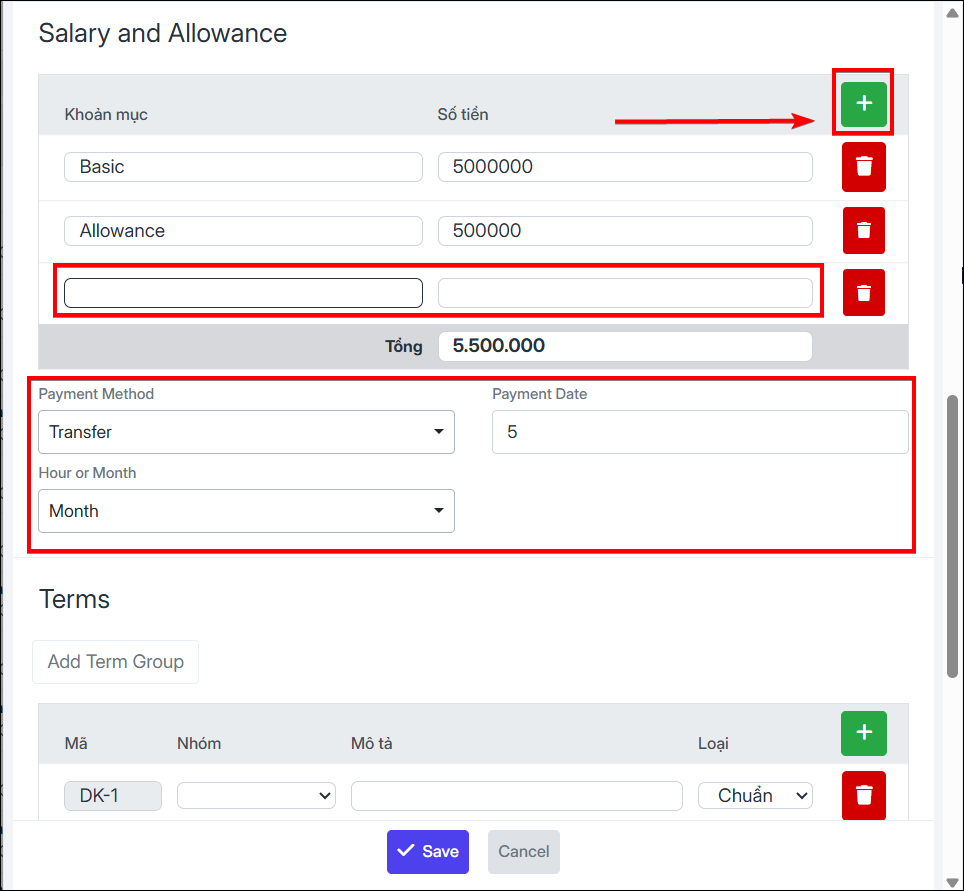
Step 4: Enter salary & allowances:
-
Add salary items
-
Select + to add multiple items
-
-
Step 5: Set up payment:
-
Salary payment method
-
Salary payment date
-
Select payment by hour / month
-
-
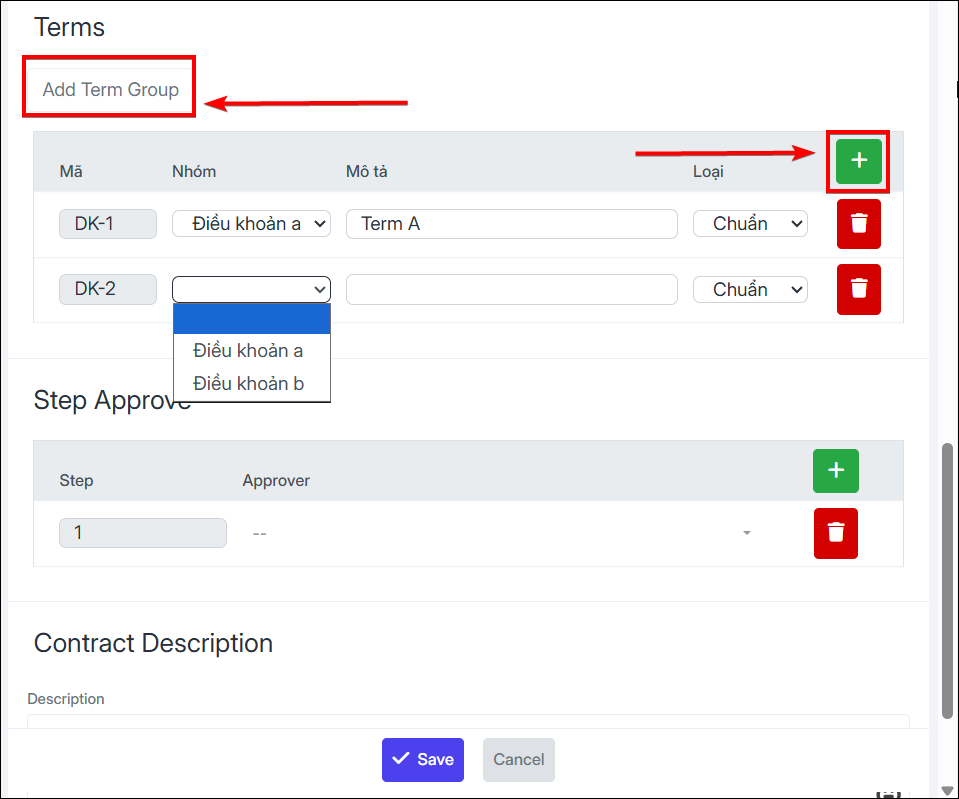
Step 6: Contract terms:
-
Select terms group (can add new)
-
Enter description
-
-
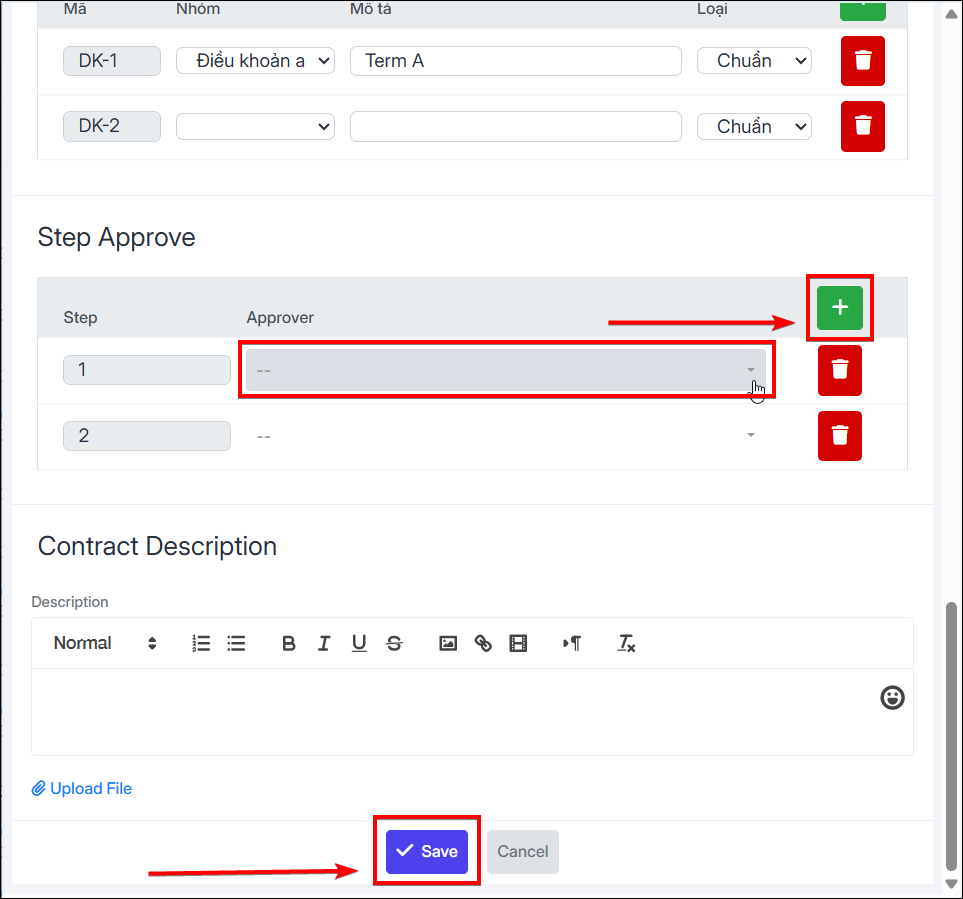
Step 7: Approval & content:
-
Select approver
-
Add multiple approvers
-
Enter contract content
-
Upload file (if any)
-
-
Step 8: Select Save
Sign Contract:
- Go to contract details → Select View Contract
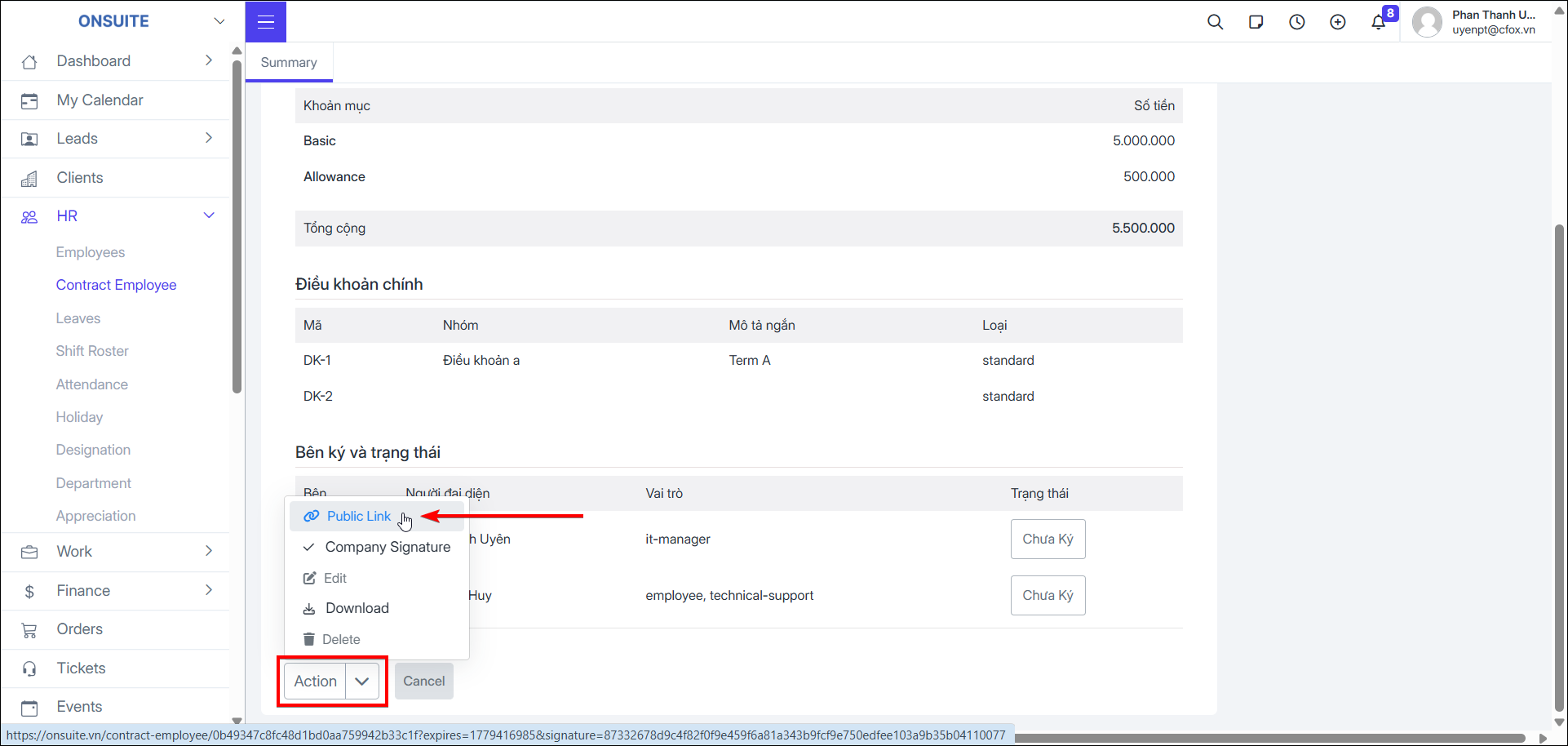
- Select Public Link → Send link to signer
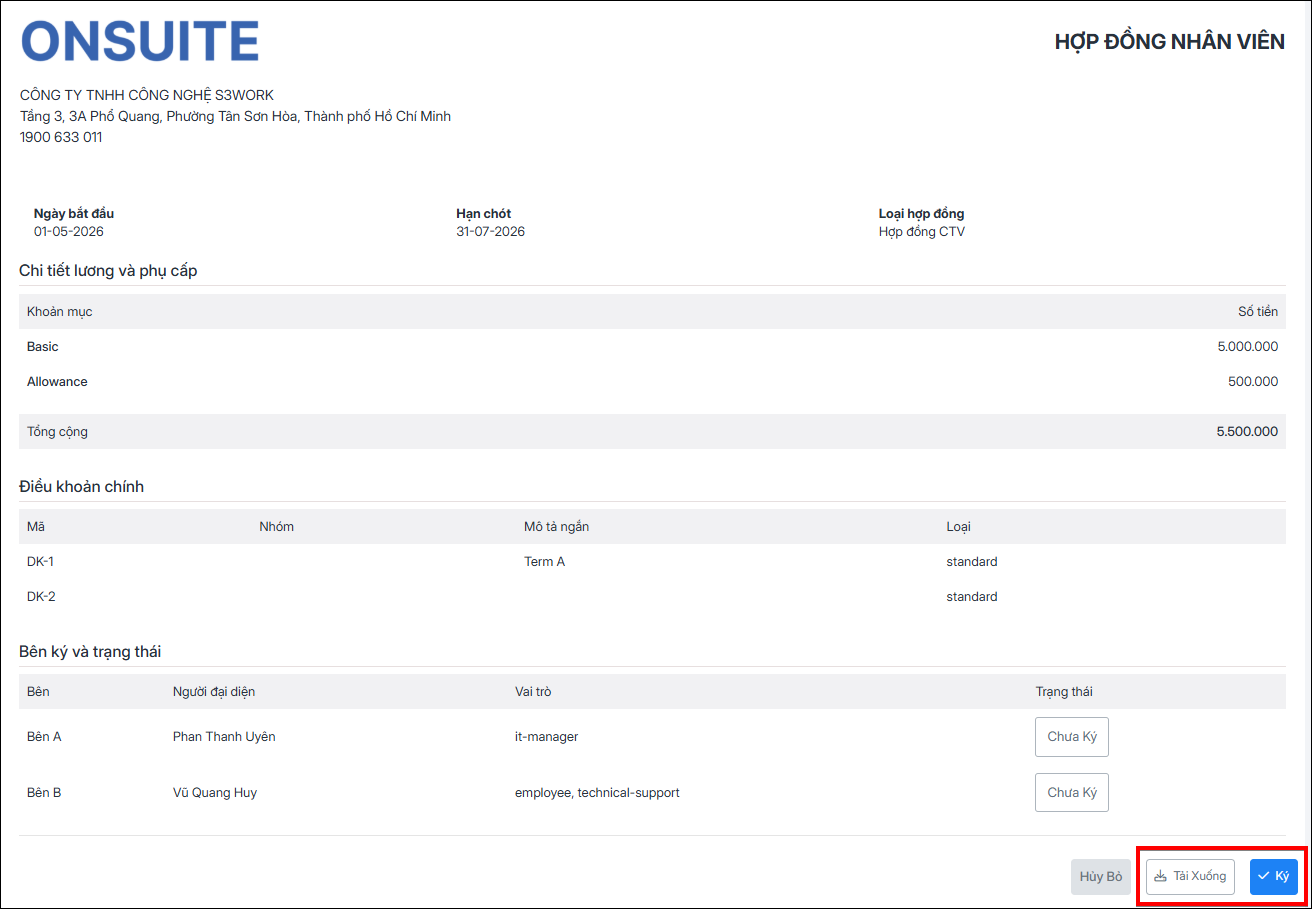
Signing Party Actions:
- Access link → download file → select sign
-
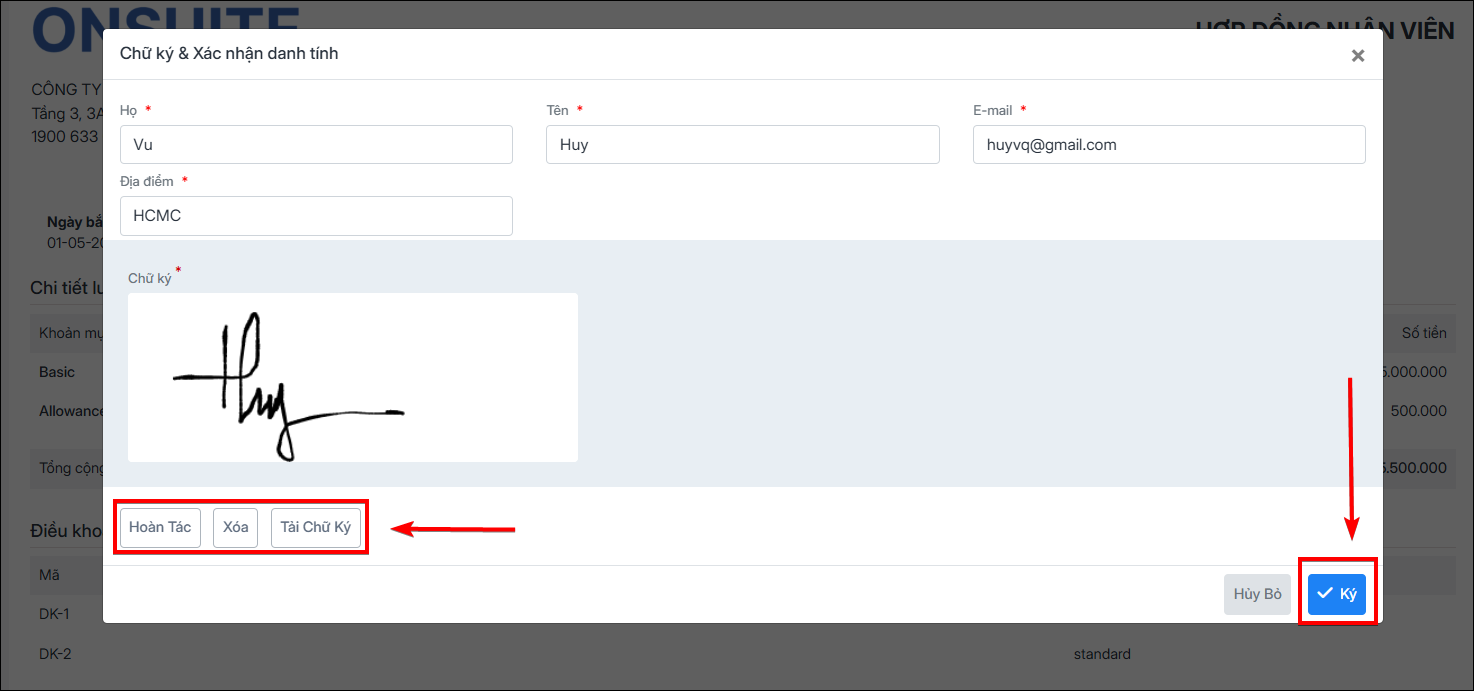
Enter personal information, location
-
Sign directly or upload signature
-
Can undo / clear signature
-
Select Sign to complete
Company Signing:
- Go to contract → scroll to the signing section
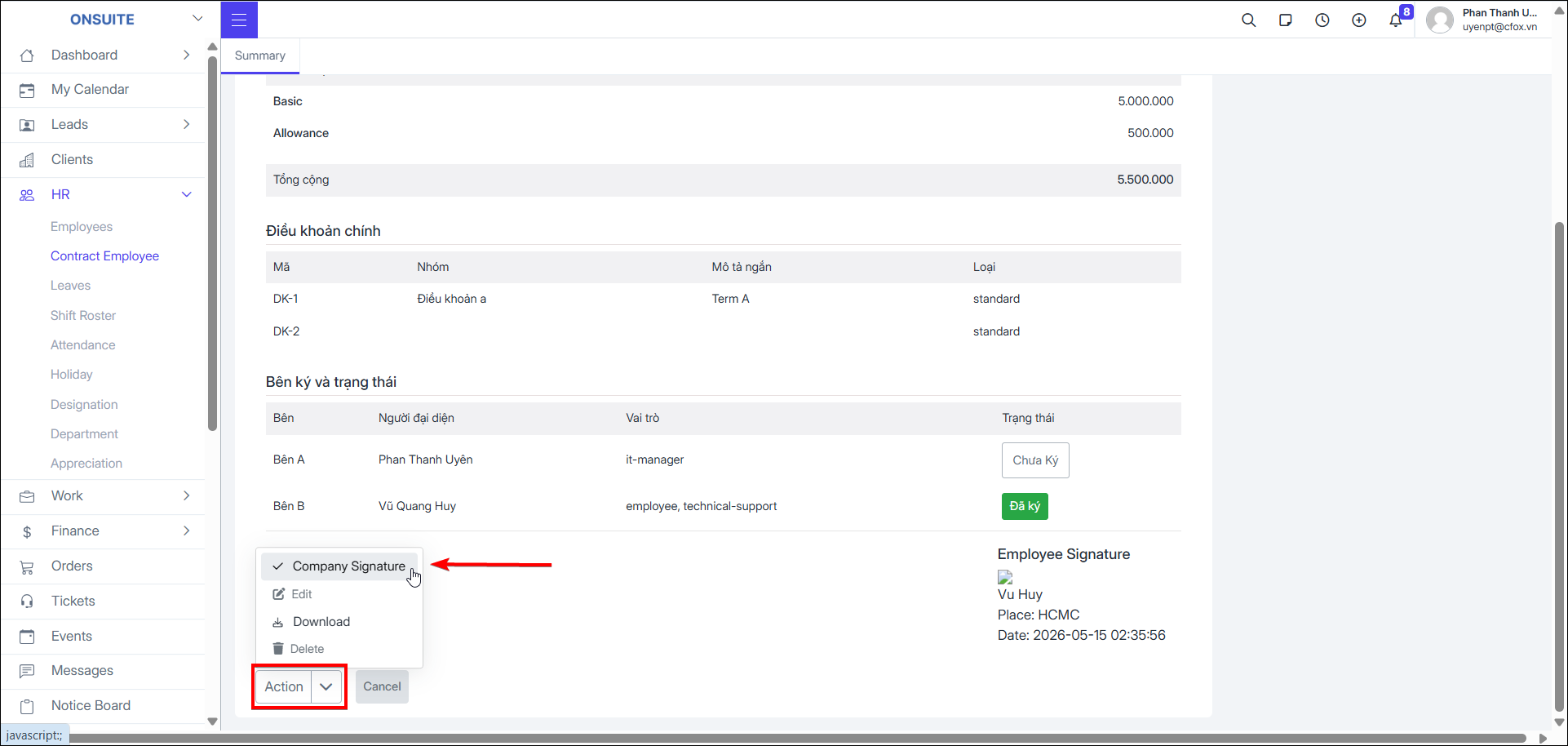
-
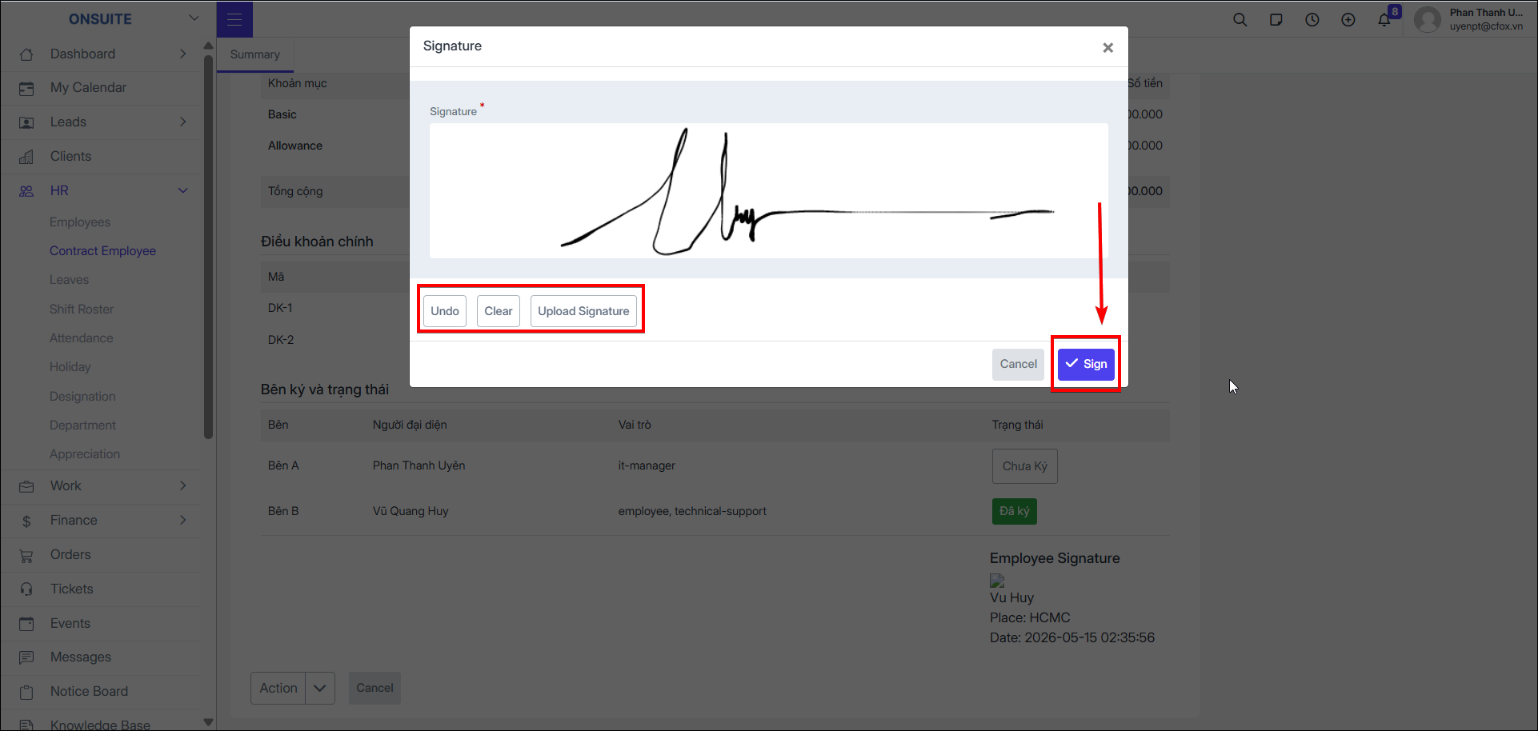
Enter company signature or upload
-
Select Sign
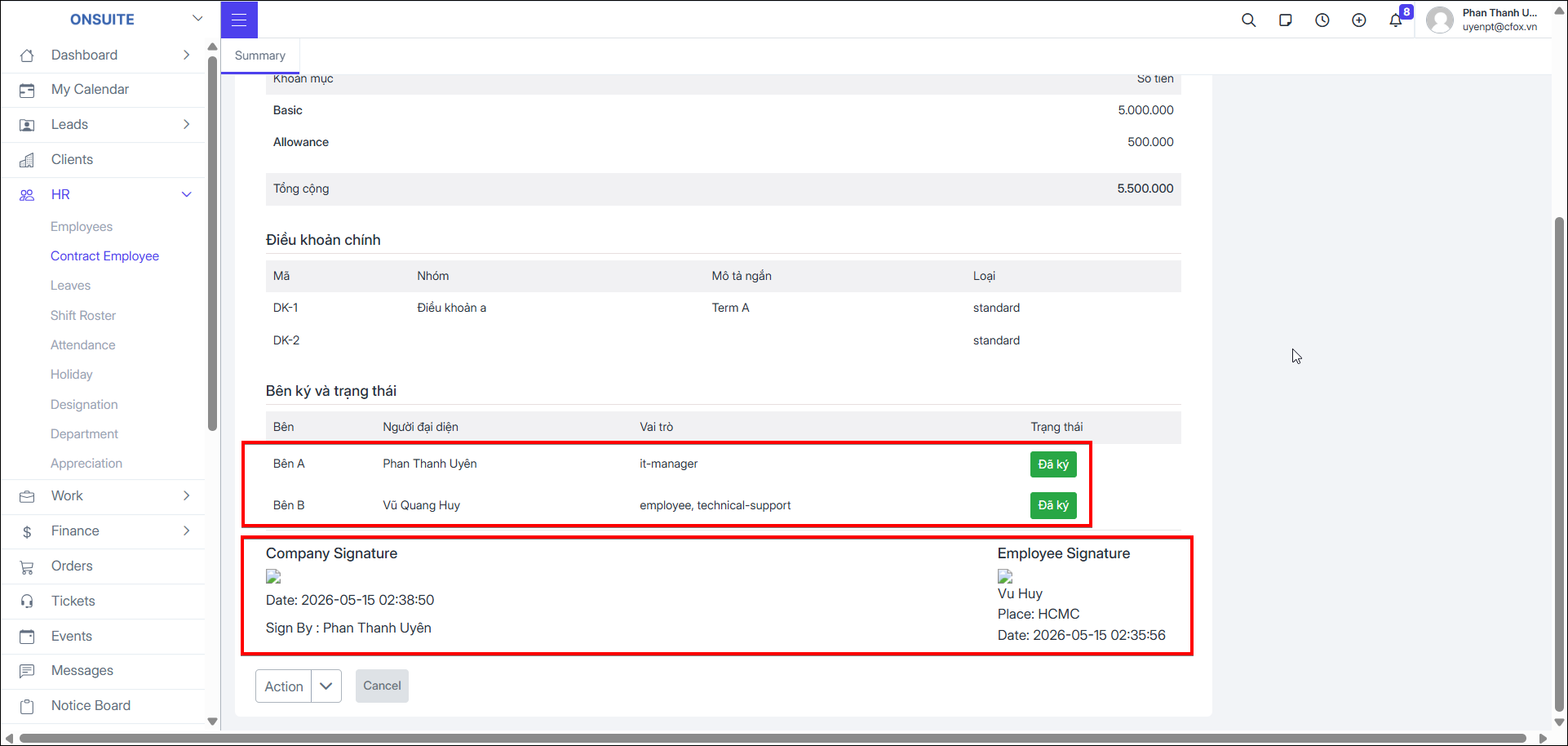
- → Contract displays complete signatures from both parties
- Can search or filter by time, contract type, export contracts